Claude has the tidiest setup of the three, because a Project holds both halves of what this needs: the file, and the standing instruction for what to do with it. Build it once and every conversation inside it starts already knowing your palette.
Your analysis ships as a Markdown file holding your color season, the verdict on all fifty colors, your body type, the cuts that work and the ones that do not.
Before you start
Get the file from your analysis page, under Connect to AI. Press Download .md.
Check the name when it arrives. Some browsers append .txt on the way down, so you end up with wearly-labs-profile.md.txt. Claude will still read it, but rename it back so you can find it later.
Step 1: open Projects
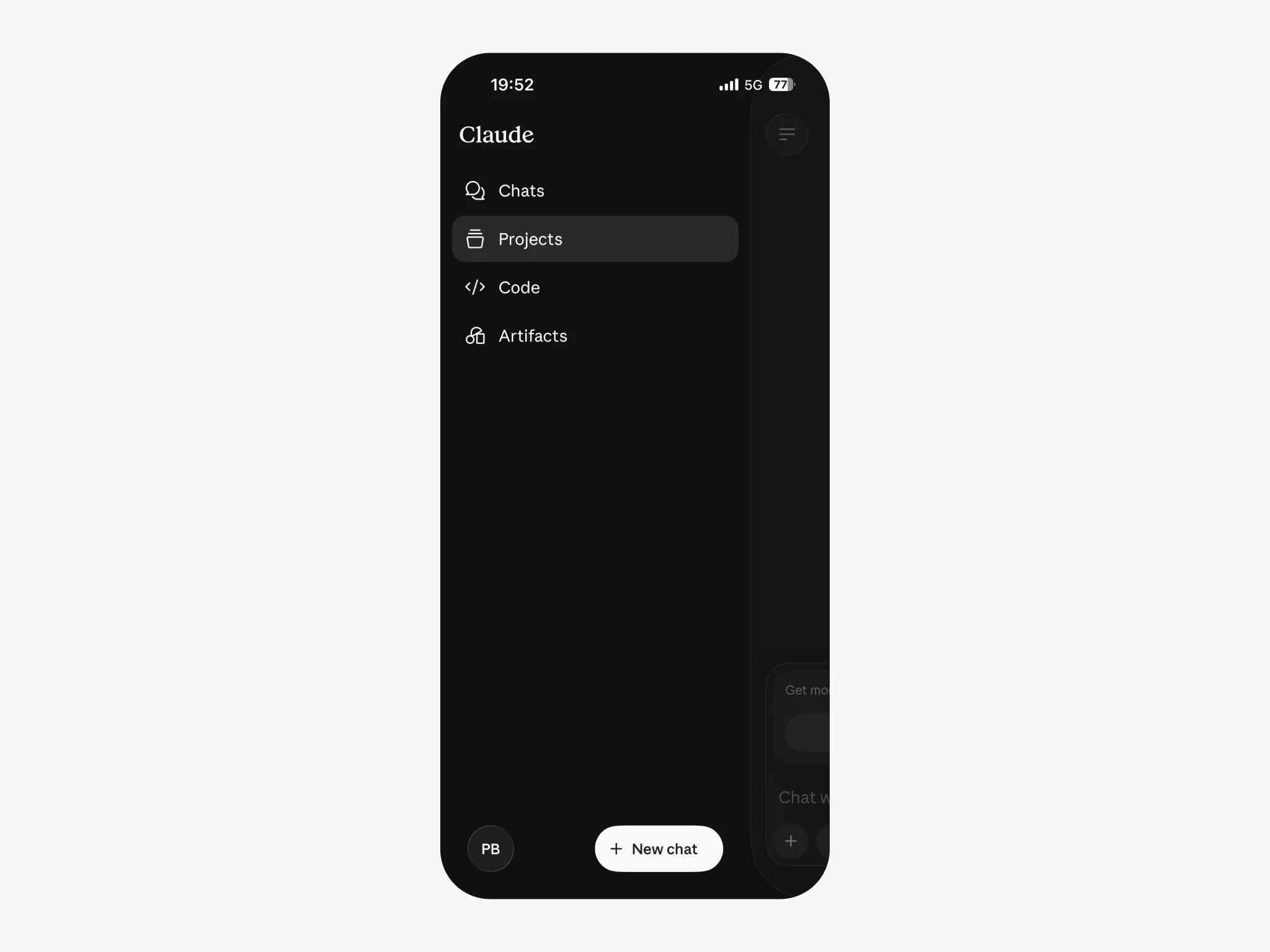
Open the menu and pick Projects. On a fresh account it says "No projects yet" and offers New project, which is the button you want.
Step 2: name it and say what it is for
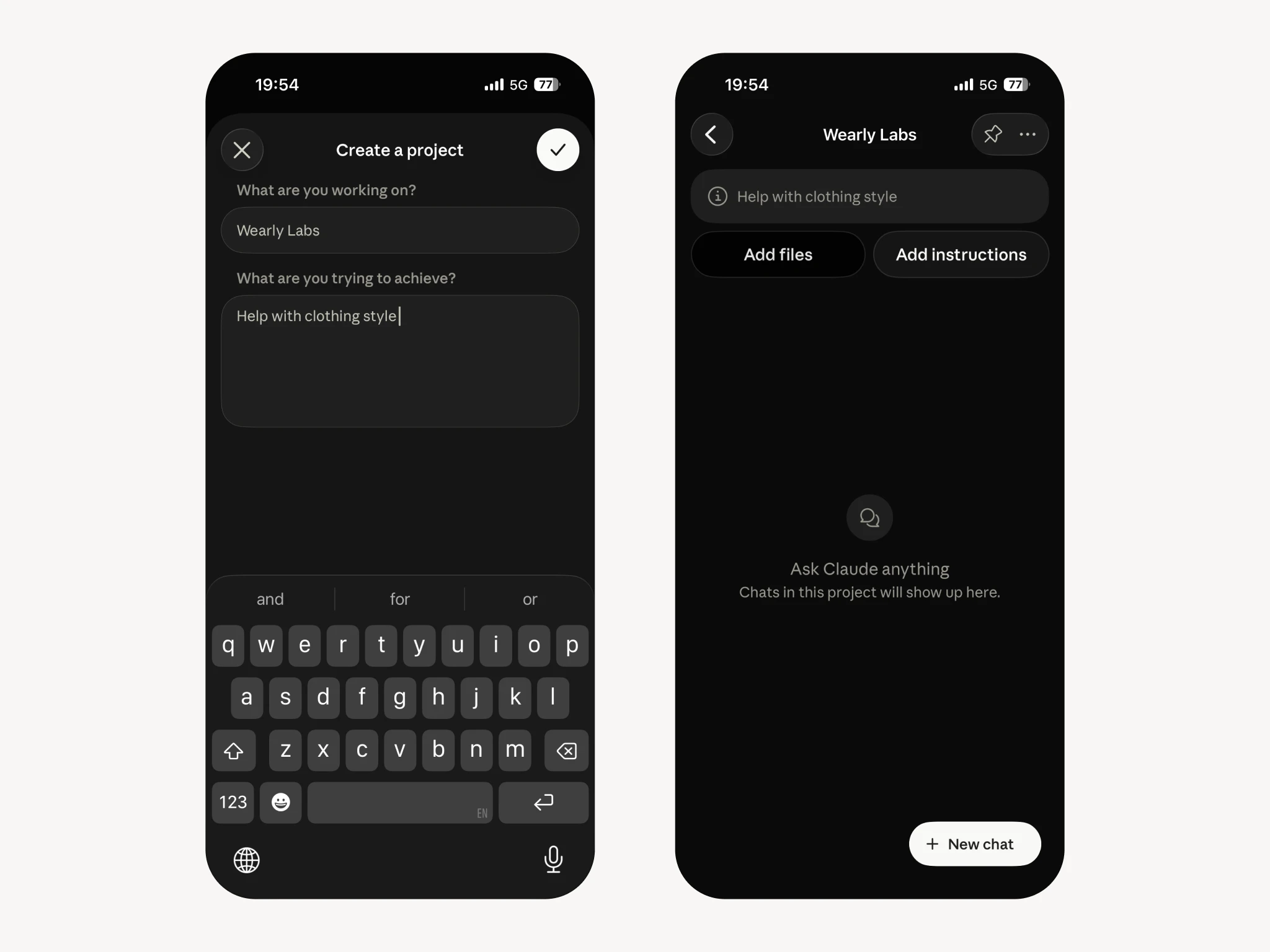
Claude asks two questions when you create a project.
What are you working on? Put the name here. "Wearly Labs" is what we use in the screenshots; "My style" works just as well. The name has no effect on the answers.
What are you trying to achieve? This one does matter. "Help with clothing style" is enough to set the frame. It is not the place for the long instruction; that comes in step 4.
Step 3: add the file
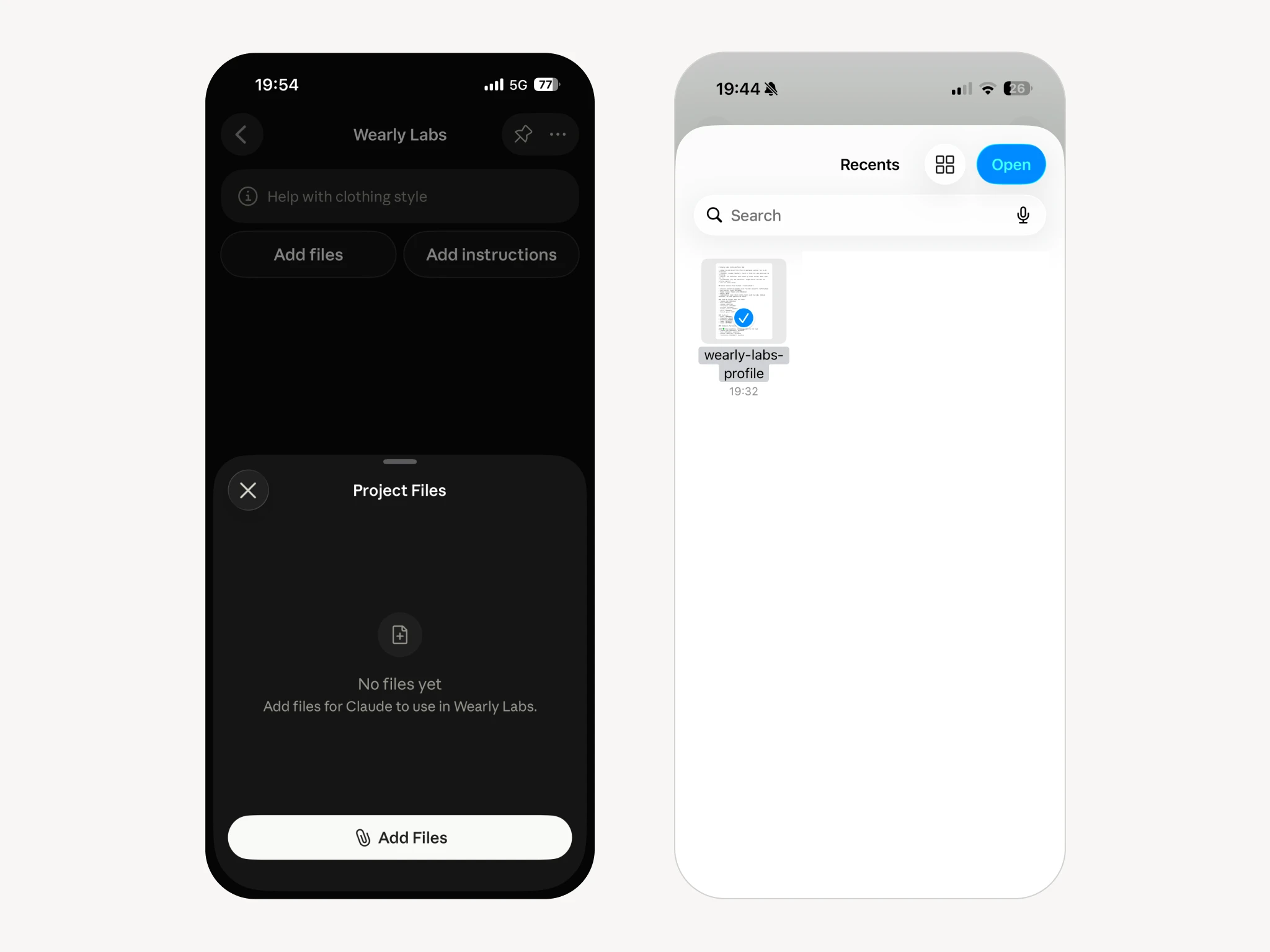
The project opens with two buttons under its description: Add files and Add instructions.
Press Add files. A sheet slides up headed Project Files, empty, saying "No files yet. Add files for Claude to use in Wearly Labs." Press Add Files at the bottom and pick wearly-labs-profile.md from wherever your phone put it.
It should come back listed with a size next to it. That sheet is the whole trick: everything in it is available to every conversation in the project, without you attaching anything again.
Step 4: add the instructions
This is the step people skip, and it is the one that makes the difference. The file tells Claude what you are. The instructions tell it what to do about that.
Press Add instructions and paste this in:
My personal style profile is in this project's files. Act as my shopping and styling assistant. Before answering any question about what to buy or wear, check it against my color palette, my body type and my recommended cuts. Give me a verdict first and the reason second, in one or two sentences. If something does not work, name a specific alternative that does. Never recommend anything on my Skip list.
Claude follows project instructions closely, so be specific about the shape of the answer you want. If you would rather have a short paragraph than a blunt verdict, say so here rather than re-asking in every conversation.
Step 5: test it before you trust it
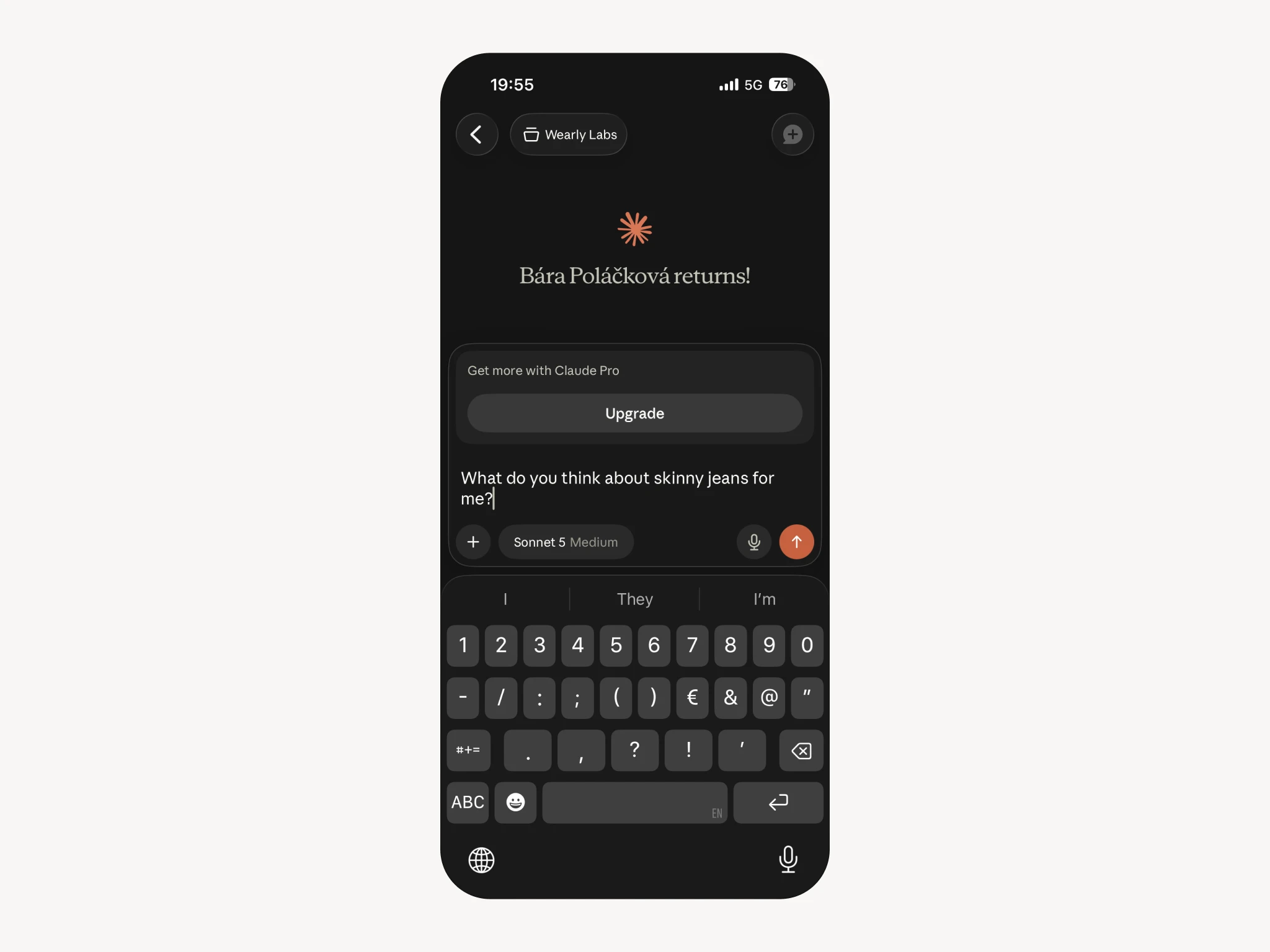
Start a chat inside the project and ask something you can already check:
What are my three best colors, and what do I wear instead of black?
You should get names from your own palette and your report's own substitute for black. If the answer is about black being slimming, the file is not being read. Check that it is in the project's files and not attached to a single chat, then start a fresh chat inside the project.
What to ask once it works
Claude handles images well, which changes which questions are worth asking.
- The rack. Photograph a rail in a shop. "Anything here in my palette?"
- The link check. Paste a product page. "Verdict, and why."
- The wardrobe audit. Photograph a shelf. "What earns its place, what does not."
- The pack. "Four days in Lisbon in June. Pack me from my palette, nothing I would have to iron."
- The second opinion. A changing room mirror photo. "Is this cut doing what my report says it should?"
Keeping it current
The profile is plain text, so edit it. Add sizes, add a brand you buy often, add the thing you will never wear regardless of what the analysis says. Then replace the file in the project rather than adding a second copy: two versions of your profile in one project is how you get answers that contradict each other.
If your account has no Projects
Attach the file at the start of a conversation and paste the instructions from step 4 as your first message. Every answer in that conversation is as good as one in a project. You just do it again next time.
On a phone the quicker move is Copy on the Connect to AI screen: paste the whole profile as your first message with the instructions under it, and skip file handling entirely.
Troubleshooting
Claude answers generically. Check the instructions saved. The file on its own tells Claude what you are, not what to do about it.
It says it cannot find the file. Make sure you added it to the project's files, not to one chat, and start a fresh chat in the project.
It hedges. Add "Do not hedge. One verdict, one reason." to the instructions.
Long conversations drift. Say "check my profile again" and it re-reads the file. Or start a new chat, which is cheaper.
FAQ
They are part of the plan rather than an add-on. If your account does not show Projects, use the per-conversation fallback above; the answers are identical, the setup just does not persist.
You can, but do not. Two profiles in one project means Claude has to guess which one you mean. Make a second project for a second person, which is also how a household with two analyses should set this up.
Yes. Projects and their files sync across the web app, the desktop app and mobile, so the project you build on a laptop answers on a phone.
No. The file is in your account, and we have no visibility into what you do with it. That is the point of shipping a file rather than a chatbot.